Splice - Video Editor & Maker
- 3.6
- Rating
- 10.00M
- Installs
- Free
- Price

 Analysis by App-foxy
I approached Splice as the kind of editor I could use when I wanted to turn ordinary phone footage into something presentable without sitting at a desktop. It is a free video-editing app from Bending Spoons, aimed at people who want a practical timeline, music, text, slow motion, and other everyday tools in one mobile workspace. After spending time with its editing flow, my impression is clear: it is more capable than a basic clip trimmer, but it still feels approachable enough for a first project.
That balance is the reason I would recommend it to a friend who makes short travel clips, family videos, social posts, or simple promotional material. I would not describe it as a replacement for a full desktop editor, and I would not choose it for a complicated multi-camera production. Its strength is the middle ground: enough control to make deliberate decisions, without forcing every user to learn a professional editing system before exporting a short video.
How I use Splice from raw clips to a finished video
The most sensible way to begin is with a small, clearly defined project. I usually start by deciding what the video is supposed to do before importing anything. A quick birthday montage needs a different rhythm from a product demonstration, and the app becomes easier to use when I already know whether I am prioritizing music, spoken audio, movement, or text.
You May Also Like

 Blood Strike: 2.5 Anniversary
Blood Strike’s Loadouts Turn Every Drop Into a Tactical Gamble
A close look at Blood Strike’s custom loadouts: how fast access to signature weapons reshapes its battle royale rhythm, rewards preparation, and narrows the gap between fights.

 Pandora - Music & Podcasts
Pandora’s Music Is Easy to Start, but Harder to Recover
Pandora’s strength is its low-effort path from a seed to a station. Its weak spot is how much confidence it asks you to place in connection, setup, and quiet recovery.

 8 Ball Pool
 Is Built on Rivalries, Rematches, and Routine
A close look at the rivalries, rematches, shared routines, and unanswered safety questions that turn a quick pool match into a persistent mobile community.

 Samsung Music
’s Quiet Strength Is Playing What You Already Own
Its reach comes less from spectacle than from dependable access to a personal library. That simplicity is both the app’s strongest retention engine and its ceiling.

 AccuWeather: Weather Radar
AccuWeather Review: A Quick, Clear Forecast for Everyday Decisions
For everyday plans, the best forecast is the one you can understand quickly. AccuWeather makes rain timing, radar, and local conditions easy to act on, with a few trade-offs.

 Hill Climb Racing
Why Hill Climb Racing Still Turns Crashes Into One More Run
A tiny car, a bumpy hill and one more upgrade: Hill Climb Racing keeps resurfacing because its simple chaos makes every near-miss feel personal.
More From Our News Desk



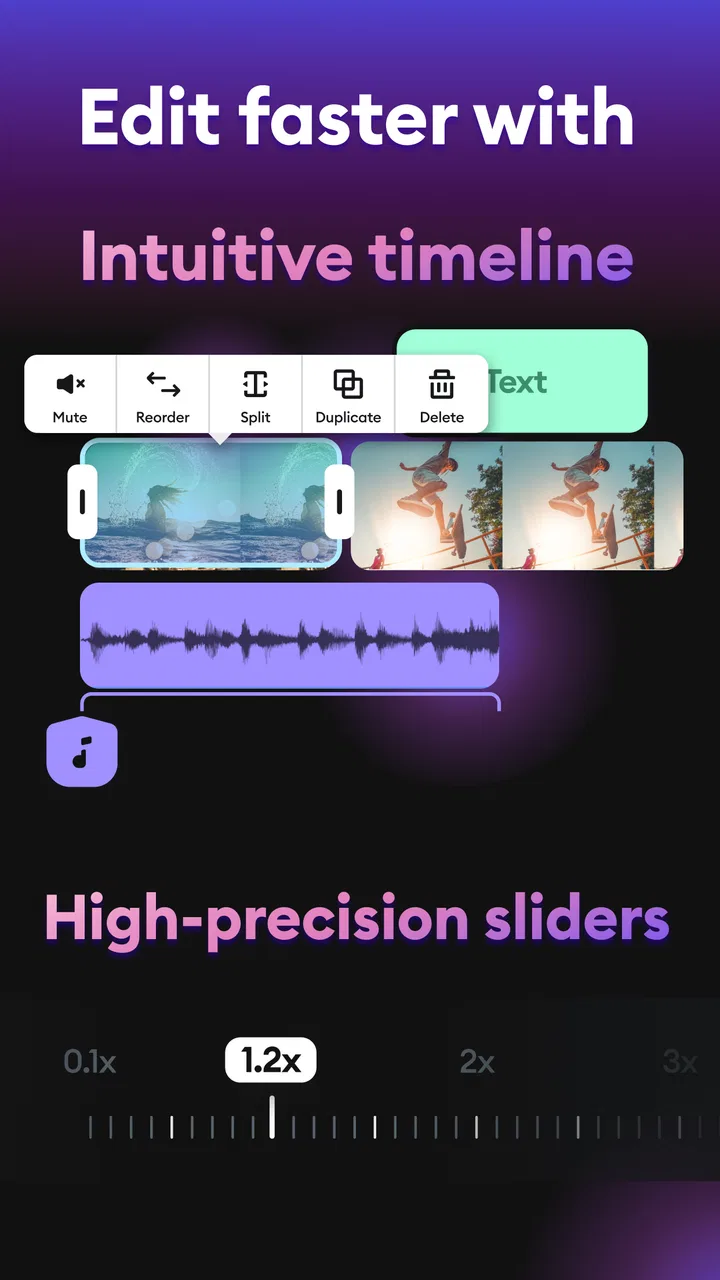
Once the clips are in place, the basic workflow is familiar: arrange the footage, remove unhelpful sections, adjust the order, and then add the elements that support the story. The timeline is where the app earns its place among mobile video editors. I can make the rough cut first instead of trying to perfect every clip immediately. That habit saves time because it prevents me from polishing footage that may later be removed.
For a realistic everyday example, imagine I have recorded a short walk through a weekend market. I would keep the opening wide shot brief, cut away from shaky movement, use a closer view for the interesting stall, and finish with a human moment rather than a random leftover clip. Music can provide continuity, while a small text label can explain the location. The result does not need elaborate effects; it needs clean choices, and Splice makes those choices manageable on a phone.
I also like separating the edit into passes. In the first pass, I only decide what stays. In the second, I work on timing and transitions between shots. In the third, I deal with music, text, and slow motion. This is more reliable than opening every tool at once, especially on a small screen where too many adjustments can make the project feel cluttered.
Slow motion is most useful when the original movement supports it. A jump, a splash, a turning gesture, or a quick camera movement can benefit from a slower moment. Applying it to every clip usually weakens the video because the viewer loses a sense of normal pace. I treat it as an accent, not a default style.
Music is similarly easy to misuse. A strong track can make disconnected clips feel intentional, but it can also cover speech or make a quiet scene feel artificial. I normally build the visual sequence first, then choose music that matches its length and mood. If the footage includes important conversation, I keep the music restrained or leave it out of that section.
Text works best when it answers a question the viewer might have. A place name, a short date, or a simple explanation can be useful. Long paragraphs over moving footage are harder to read and distract from the image. I prefer short text placed only where the background gives it enough contrast, rather than decorating every shot.
The first settings I would check
Before doing serious work, I would look through the project and export controls instead of accepting every default automatically. The right choice depends on where the finished video will be watched. A clip intended for a phone feed may need different framing from one that will be shown on a wider display, and deciding that early helps prevent awkward cropping later.
I also pay attention to the relationship between the source footage and the final project. Mixing clips recorded in different orientations can create empty space, unwanted cropping, or an inconsistent visual rhythm. Splice can still be useful in that situation, but I make a deliberate choice for each important shot rather than expecting the app to make the whole sequence look uniform by itself.
Previewing the complete project before export is one of the most important habits. Small issues are easy to miss while editing: a text element may appear too briefly, a cut may land in the middle of a gesture, or a music change may feel abrupt. Watching from beginning to end reveals problems that are invisible when I inspect only individual sections.
I would also check the audio at a comfortable listening level and then replay it more quietly. If the result only sounds balanced when the volume is high, the mix may not be working. Speech should remain understandable, and music should support rather than compete with it. This is a simple test, but it catches more problems than adding another visual effect.
Exporting is not the moment to experiment blindly. I decide where the video is going, preview the result, and keep the original project until I know the exported file behaves as expected. That matters particularly when a video is being shared with someone else or used for a small business task. A finished-looking preview is not the same as checking the actual output.
For anyone wondering whether the app is free, the download itself costs nothing, while in-app purchases range from around one dollar to over two hundred dollars per item. I would therefore explore the editing workflow before committing to any optional purchase. The free starting point is useful for learning whether the timeline and creative tools fit my habits, but users should pay attention to what is available in their chosen setup before building a workflow around it.
Habits that make editing noticeably faster
The biggest speed improvement does not come from tapping faster. It comes from preparing better material. I sort through my camera roll first and remove duplicate takes, accidental recordings, and clips that are too similar. Importing everything creates unnecessary decisions inside the editor, while a smaller selection lets me focus on pacing.
I also name the purpose of each clip mentally before placing it: opening, detail, movement, reaction, explanation, or ending. This makes arranging footage less random. When a project feels flat, I can see what is missing. Often the problem is not a lack of effects but the absence of a useful change in distance, direction, or subject.
A helpful repeatable pattern is to make a rough version with no music or text, watch it once, and only then add polish. If the story does not work silently, decorative elements will not fix it. This approach is especially valuable in Splice because its accessible tools can tempt me to keep adding adjustments before the underlying sequence is ready.
For short social videos, I keep the opening purposeful. The first clip should establish the subject quickly rather than spending several seconds on an unrelated introduction. I then vary the shot length enough to avoid a mechanical rhythm. A brief detail shot after a wider view can create energy without needing a transition effect.
Another useful habit is to duplicate a project before making a major change, when the workflow allows it. I can then try a different music choice or a tighter cut without losing the earlier version. This is more practical than repeatedly undoing a long chain of edits, particularly when I am comparing two possible endings.
I would not rely on shortcuts in the desktop sense, because this is a touch-first mobile editor. Instead, my speed comes from repeatable gestures and consistent decisions: trim during the first pass, arrange during the second, and style during the third. Keeping those jobs separate reduces accidental changes and makes it easier to find the source of a problem.
When I edit several related clips, I use the same visual rules across them. Similar text placement, a consistent approach to music, and comparable pacing make separate videos feel like part of one set. Splice is well suited to this kind of repeatable personal workflow because the tools are straightforward enough to reuse without rebuilding a complicated production template each time.
Where the app is strong, and where I would be cautious
Splice is strongest when the project is short to medium in complexity and the goal is a polished result rather than exhaustive control. Its collection of editing tools covers the needs of many ordinary videos: cutting, arranging, adding music, placing text, and emphasizing movement with slow motion. That combination is more useful than a bare trimming app, especially for someone who wants the finished file to feel intentionally made.
The trade-off is that a mobile interface has limited space. Detailed adjustments can require patience because I am working through touch controls instead of a large monitor, keyboard, and multiple visible panels. For a quick edit this is acceptable. For a long project with many layers and precise timing requirements, I would rather use a more specialized editor on a larger screen.
I would also be cautious about assuming that every project benefits from the same level of polish. A simple clip may look better after a clean cut and understandable audio than after a stack of effects. Splice gives me enough creative freedom to over-edit, so restraint becomes part of using it well.
Compared with the basic editor built into a phone’s gallery, Splice offers a more intentional creative workspace. A gallery editor is convenient for trimming or making a very quick correction, but it may feel limited when I want music, text, slow motion, and a sequence built from several clips. Splice is the better choice when I am making a complete short video rather than repairing one recording.
Compared with more advanced mobile editors, its appeal is simplicity. A professional-oriented alternative may provide deeper control over layers, color, audio, or complex keyframe work. That extra flexibility is valuable for experienced creators, but it also increases the learning curve. I would choose Splice when I want to finish a project quickly and keep the interface understandable, not when I need a miniature post-production studio.
The app is suitable for Everyone, which matches its approachable purpose. Still, age suitability does not answer whether it is the right tool for every creator. A child making a simple montage may find it accessible with guidance, while an experienced filmmaker may quickly notice the limits of a phone-based workflow. The important question is not only who can open it, but how demanding the intended project will be.
Its public reception is mixed rather than universally glowing: it holds an average rating of about 3.7 from roughly one hundred thirty-eight thousand ratings, with around four thousand reviews. I read that as a reason to test it personally instead of treating the rating as a final verdict. Editing preferences vary widely, and a workflow that feels pleasantly simple to one person can feel restrictive to another.
What I would want to know before choosing it
If you are new to editing, I would start with a project made from a handful of clips rather than a full day of footage. That gives you room to learn the timeline, try music and text, and understand how the preview behaves without turning the first attempt into a sorting exercise. Once the basic rhythm feels comfortable, you can take on longer sequences.
If you are asking whether it works for social content, my answer is yes for short, clearly structured posts. It is particularly useful when you want a fast combination of cuts, music, captions, and a few moments of slow motion. I would still check the final framing and readability on the platform where it will appear, because a video that looks fine in the editor can feel cramped when displayed in a different feed layout.
If your priority is advanced color correction, highly detailed audio mixing, or a large number of precisely controlled layers, I would look beyond Splice. The app can support thoughtful editing, but its convenience is tied to a simpler workflow. Choosing it for a project that demands specialist controls would likely create frustration rather than save time.
If you are concerned about storage or organization, I would keep the camera roll tidy and avoid importing material that will never be used. Mobile editing becomes slower when the project is overloaded with near-identical clips. A deliberate selection process is more valuable here than trying to solve every organizational problem inside the editor.
If you are deciding whether to pay for optional features, I would first complete a small test project and identify exactly what you need. Since purchases can range from less than a dollar to more than two hundred dollars per item, the sensible approach is to judge the value against your actual workflow rather than assuming every paid option is necessary. For occasional personal videos, the free entry point may be enough to make a decision.
The app has been available since May 5, 2021, and it has passed five million installs. Those figures suggest that it has found a substantial audience, but popularity alone does not guarantee that its editing style will suit you. I would use the first project as a practical trial: if the timeline feels natural and the export matches your needs, that is more meaningful than any headline number.
My verdict after building a repeatable workflow
After using Splice with a deliberate process, I see it as a dependable choice for people who want to edit on a phone without reducing every project to a single trim. The app gives me a clear path from raw clips to a shareable video, and its tools cover the creative decisions I make most often: pacing, music, text, and selective slow motion.
The real advantage is not the number of tools, but how quickly those tools can become a repeatable habit. I can sort footage, make a clean rough cut, review the rhythm, add only the necessary styling, and inspect the final result before exporting. That sequence keeps the app useful instead of turning it into a playground for effects.
I would recommend it to a beginner who wants more than a gallery editor, a casual creator making regular short videos, or someone who needs to produce a polished clip while away from a computer. I would steer a professional editor toward a larger and more technically detailed application when the project depends on complex sound, color, or layer control.
My final opinion is favorable, with a practical condition: use it for the kind of work it handles best. Start small, make the story work before decorating it, check the audio and framing, and treat optional purchases as decisions rather than requirements. Used that way, Splice - Video Editor & Maker is a friendly and capable mobile editor that earns its place between a basic phone tool and a demanding professional suite.
FAQs for Splice - Video Editor & Maker
01What features does Splice - Video Editor & Maker offer?
Splice offers a comprehensive suite of video editing tools, including trimming, cropping, and merging clips. Users can add filters, transitions, and effects to enhance their videos. The app also provides access to a library of soundtracks and the ability to add voiceovers, making it perfect for creating professional-looking videos on the go.
02Is Splice suitable for beginners in video editing?
Yes, Splice is user-friendly and suitable for beginners. Its intuitive interface and easy-to-follow tutorials make it accessible for users with no prior editing experience. The app provides guided instructions and tips, helping newcomers produce polished videos without a steep learning curve.
03Can I use Splice to edit videos for social media platforms?
Absolutely, Splice is designed with social media in mind. It allows users to export videos in various formats and resolutions, optimized for platforms like Instagram, TikTok, YouTube, and Facebook. You can easily adjust the aspect ratio and add custom text to suit your social media needs.
04Does Splice require an internet connection to function?
Splice can be used offline for basic editing tasks. However, an internet connection is necessary to access certain features, such as downloading new soundtracks, accessing cloud storage, and sharing videos directly to social media. Ensure you're connected to fully utilize all functionalities.
05Are there any in-app purchases or subscription fees in Splice?
Splice offers a free version with basic editing features. For users seeking advanced tools and effects, there is a premium subscription available. This subscription provides access to exclusive features, additional soundtracks, and removes ads, offering a more comprehensive editing experience.
Pros
- Intuitive interface for easy editing.
- High-quality export options available.
- Extensive music library included.
- Advanced effects and transitions.
- Regular updates with new features.
Cons
- Limited free version features.
- Occasional app crashes reported.
- Large file sizes for exports.
- Subscription model may deter users.
- Some features require internet access.

Splice - Video Editor & Maker
Gallery